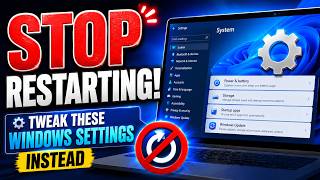
Introduction to Optimizing Windows Settings STOP RESTARTING: Tweak these 5 Windows Settings Instead! Are you tired of constantly restarting your computer to fix issues or improve performance? While restarting can sometimes resolve problems, it’s not always the most effective solution. In this article, we’ll explore five essential Windows settings that you can tweak to improve your computer’s performance, stability, and overall user experience.
1. Update Your Power Settings Go to Start > Settings > System > Power & sleep Click on the ‘Additional power settings’ option Select the ‘High performance’ plan or create a custom plan that suits your needs Adjusting your power settings can significantly impact your computer’s performance. By default, Windows is set to balance power consumption and performance. However, you can tweak these settings to prioritize performance, which can be especially helpful for resource-intensive tasks like gaming or video editing. 2. Disable Unnecessary Startup Programs Press the Windows key + R to open the Run dialog box Type ‘msconfig’ and press Enter In the System Configuration window, click on the ‘Startup’ tab Disable any programs that you don’t need to run at startup Many programs are set to launch automatically when you start your computer, which can slow down your startup time and consume system resources. By disabling unnecessary startup programs, you can improve your computer’s startup time and reduce the likelihood of crashes or freezes. 3. Adjust Your Disk Cleanup Settings Go to Start > Settings > System > Storage Click on the ‘Free up space now’ option Select the types of files you want to delete, such as temporary files, system files, or files in the recycle bin Click ‘Remove files’ to delete the selected files Over time, your computer’s hard drive can accumulate junk files, temporary files, and other data that can slow down your computer. By adjusting your disk cleanup settings, you can free up space on your hard drive and improve your computer’s performance. 4. Customize Your Windows Update Settings Go to Start > Settings > Update & Security > Windows Update Click on the ‘Advanced options’ link Select the ‘Update options’ dropdown menu Choose the update frequency that suits your needs Windows updates can sometimes cause issues or slow down your computer. By customizing your Windows update settings, you can choose when and how updates are installed, which can help minimize disruptions to your workflow. 5. Tweak Your Taskbar Settings Right-click on an empty area of the taskbar Select ‘Taskbar settings’ Toggle off any features you don’t need, such as the Cortana button or the People icon Customize the taskbar’s appearance and behavior to suit your preferences The taskbar is a critical component of the Windows interface, and customizing its settings can improve your productivity and user experience. By tweaking your taskbar settings, you can streamline your workflow, reduce clutter, and access your frequently used apps more efficiently. Conclusion By tweaking these five essential Windows settings, you can improve your computer’s performance, stability, and overall user experience. Remember to regularly review and adjust these settings to ensure your computer continues to run smoothly and efficiently. Whether you’re a casual user or a power user, optimizing your Windows settings can help you get the most out of your computer and reduce the need for frequent restarts.
...